PanelOrganization
Roles
A role is a set of permissions. A person holds one organization role and at most one project role in each project, and in a project may do what either of them allows.
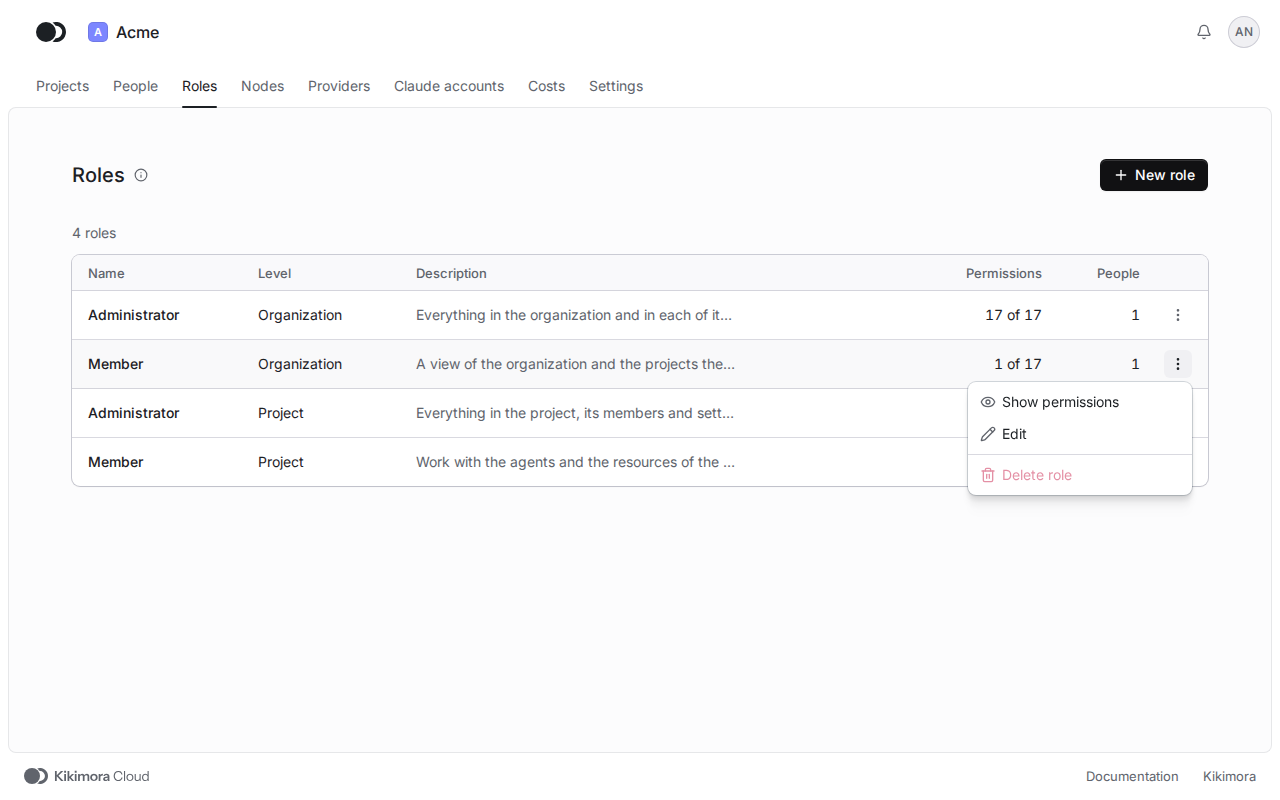
Every organization starts with four roles: Administrator and Member of the organization, and Administrator and Member of a project. They are ordinary roles: you can change their name and permissions, or delete them once nobody holds them.
| Level | Permission | What it opens |
|---|---|---|
| Organization | View the organization | The organization, its people, roles, nodes, providers and Claude accounts, without changes |
| Organization | People and roles | The accounts of people, their roles, passwords and disabling, and the roles of the organization |
| Organization | Create and delete projects | New projects and their deletion |
| Organization | Nodes | Nodes with their split, VPN, private network, size and registration |
| Organization | Providers | The DigitalOcean and Hetzner accounts |
| Organization | Claude accounts | The Claude accounts of the organization |
| Organization | Organization costs | The costs of the organization, its projects and agents |
| Organization | Organization settings | The name, the appearance and the switch threshold of the organization |
| Project | View the project | The project, its agents with their tasks, sessions, memory and backups, the resources and the members |
| Project | Control agents | Starting, stopping, restarting and updating agents, and their tasks |
| Project | Edit agents | Adding agents, their settings, backups and deletion |
| Project | Credentials | The GitHub, GitLab and Bitbucket tokens of the project |
| Project | Repositories | The repositories of the project |
| Project | Tools | The tools of the project |
| Project | Project members | Adding members, changing their role and removing them |
| Project | Project settings | The name, the appearance and the queue of Claude accounts of the project |
| Project | Project costs | The costs of the project and its agents |
Step 1: Open Roles
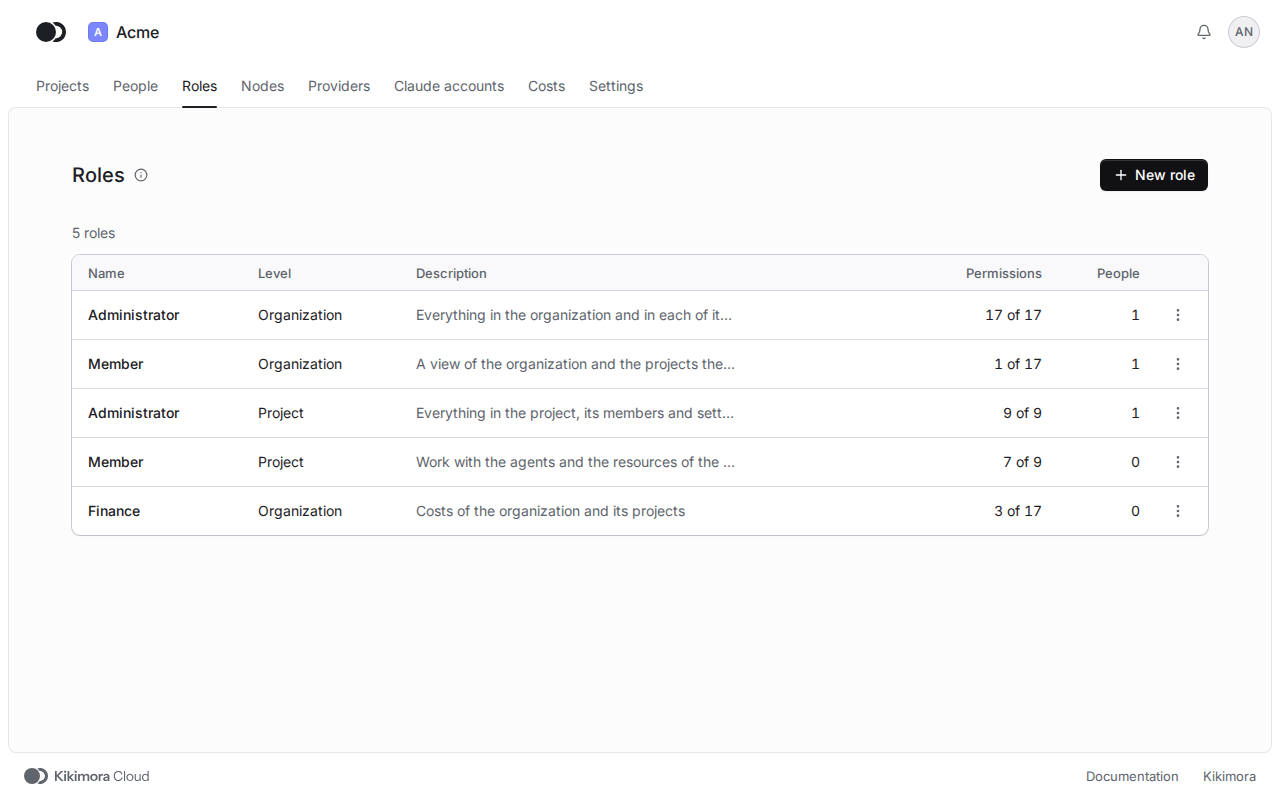
Click Roles in the header of the organization. The table shows the roles of both levels with their count of permissions and people, and Show permissions in the menu of a role opens its permissions in groups.
Step 2: Put together a new role
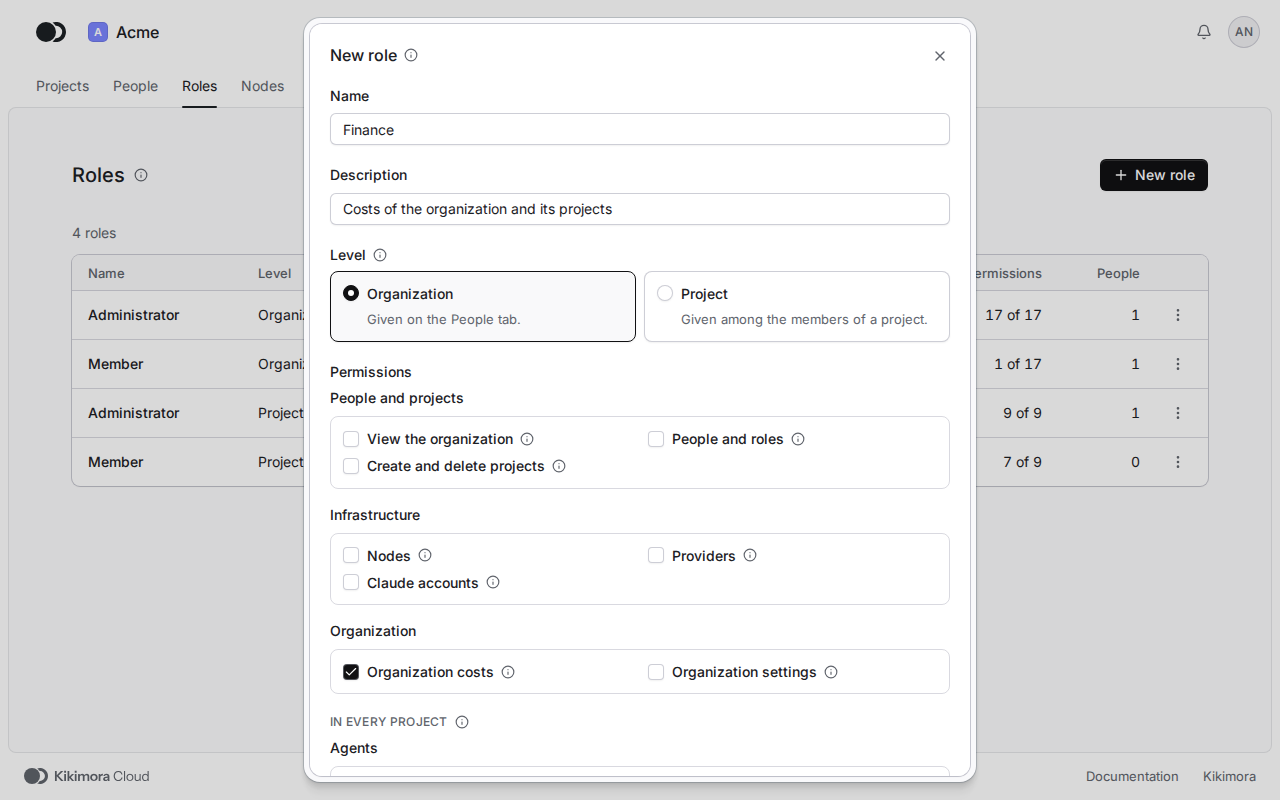
Click New role, type a name and pick the Level. Tick the permissions and click Create role. An organization role with project permissions gives them in every project.
Step 3: Give the role
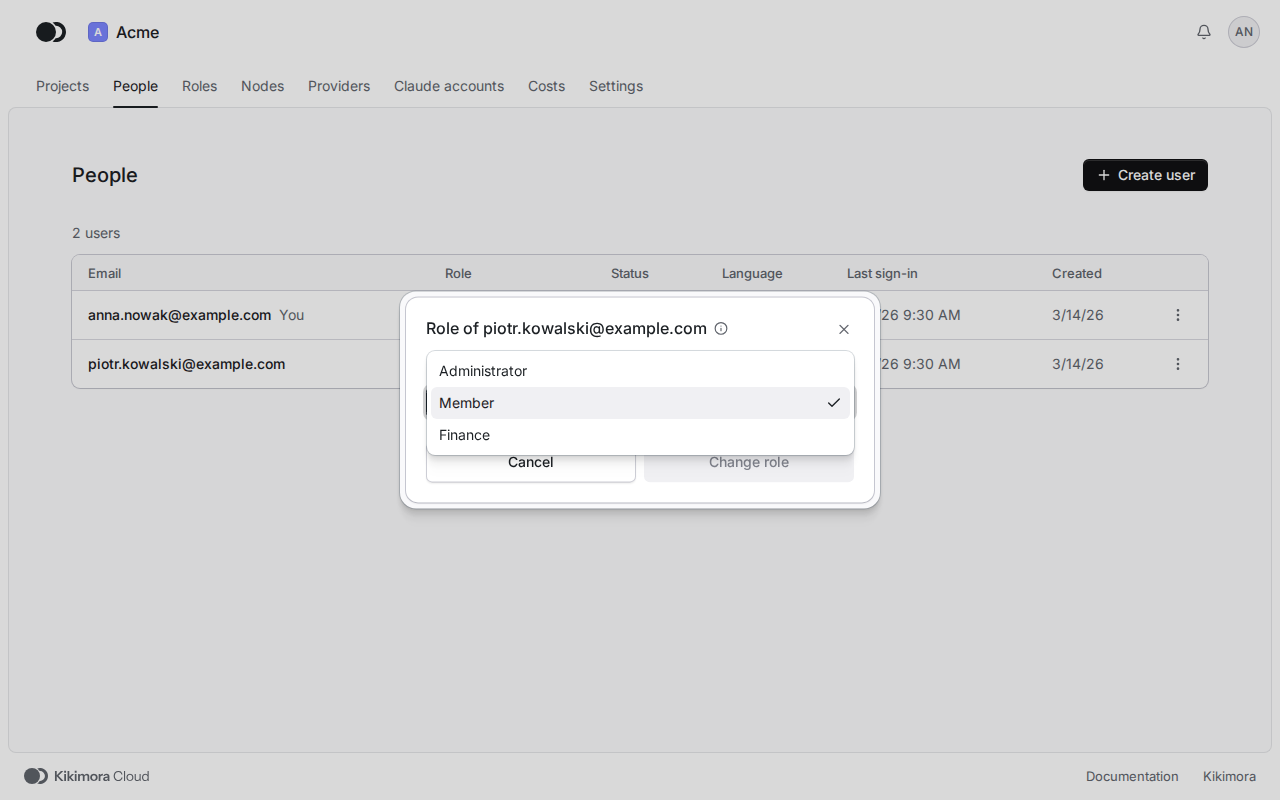
You give an organization role in the menu of a person on the People tab, and a project role on the Members tab of a project. Choose Change role and pick the role from the list.
Step 4: Delete a role
Choose Delete role in the menu of the role and confirm. A role somebody holds can go only after you change their role.