PanelOrganization
People
The People tab holds the accounts of everyone in the organization. A person with People and roles creates accounts here, gives organization roles, resets passwords and disables accounts.
Step 1: Open People
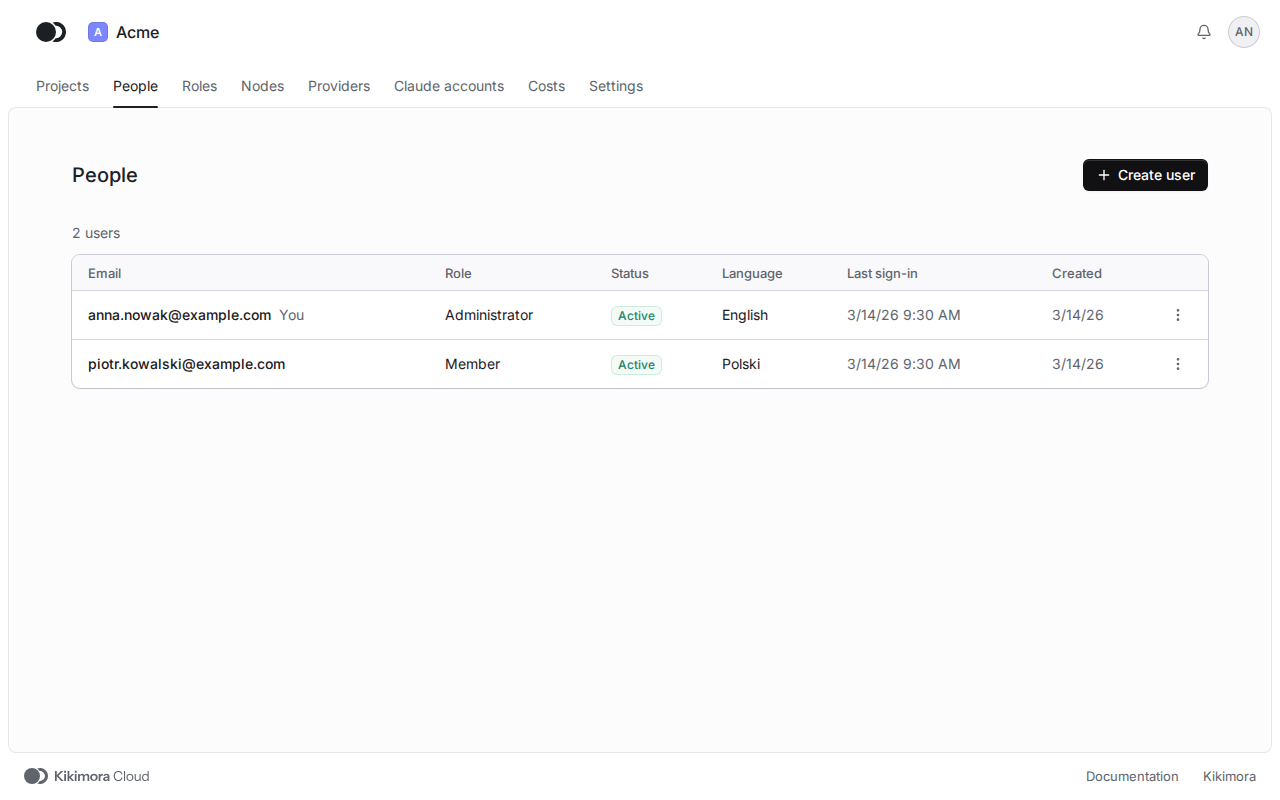
Click People in the header of the organization. The table shows the role, the status, the language and the last sign-in of each person. Password change pending marks someone who has not changed their temporary password yet.
Step 2: Create an account
Click Create user. Type the Email, pick the Role from the list of organization roles and the Language of the panel. Leave the Initial password empty, and the panel generates a temporary one.
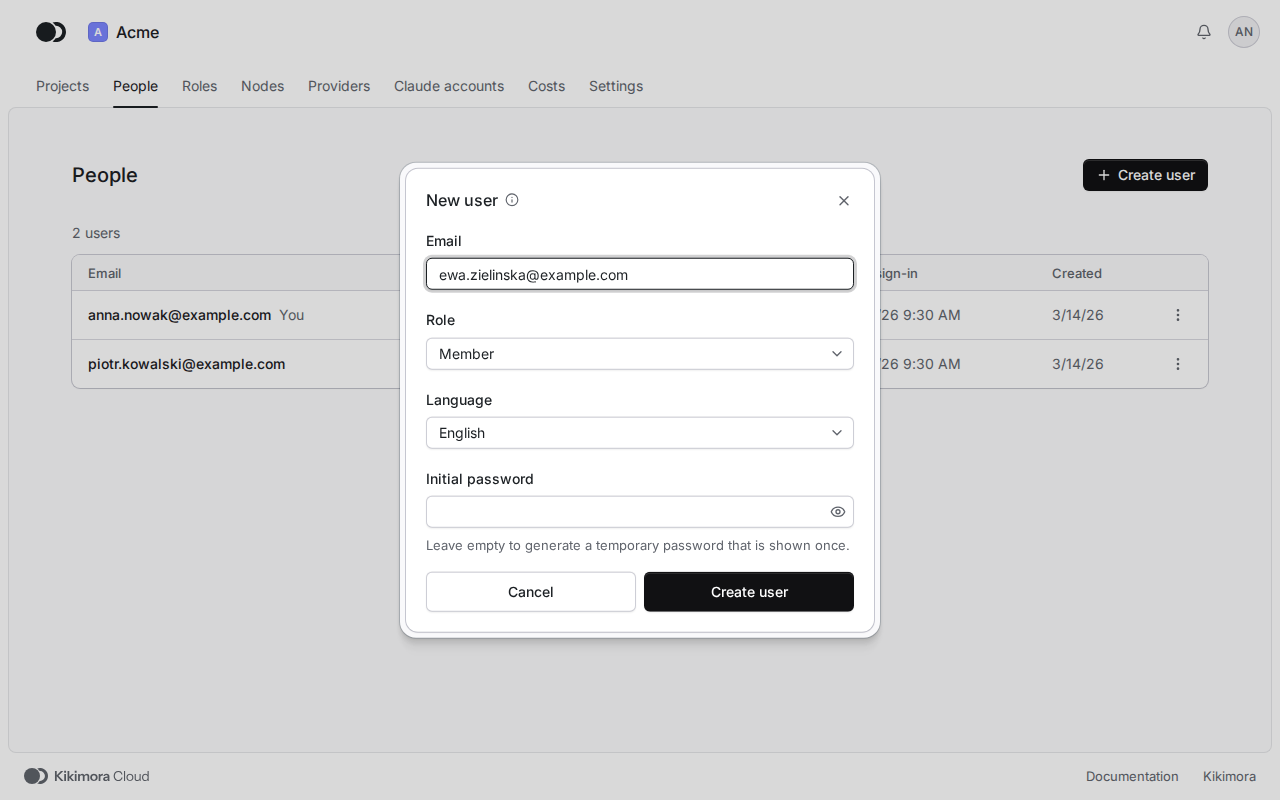
The organization role decides what a person may do in the organization and in each of its projects, and they see other projects once you add them on the Members tab of a project. You put roles together on the Roles tab.
Step 3: Change the role, the password or the status
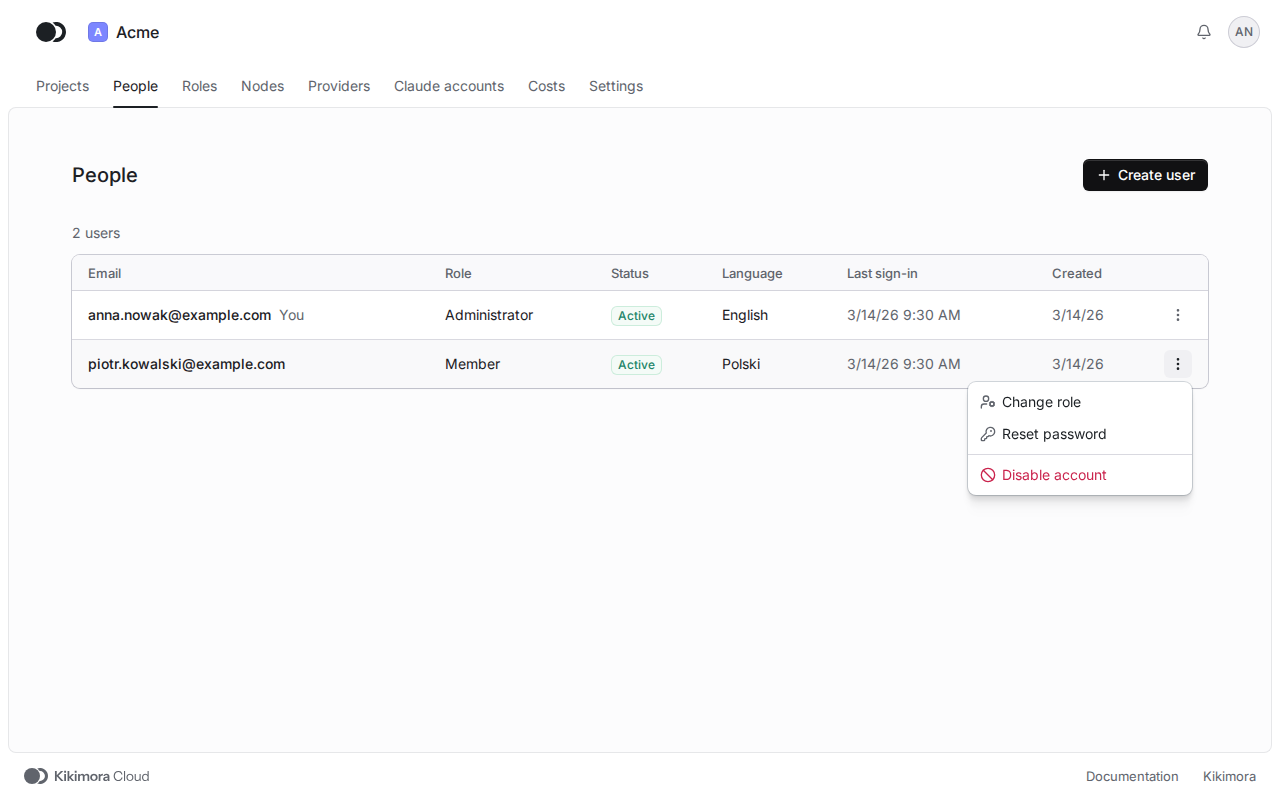
Open the menu of the person's row. Change role opens the list of organization roles, Reset password gives a new temporary password, and Disable account signs the person out and blocks their sign-in until Enable account. You cannot change your own account here.
Step 4: Pass on the temporary password
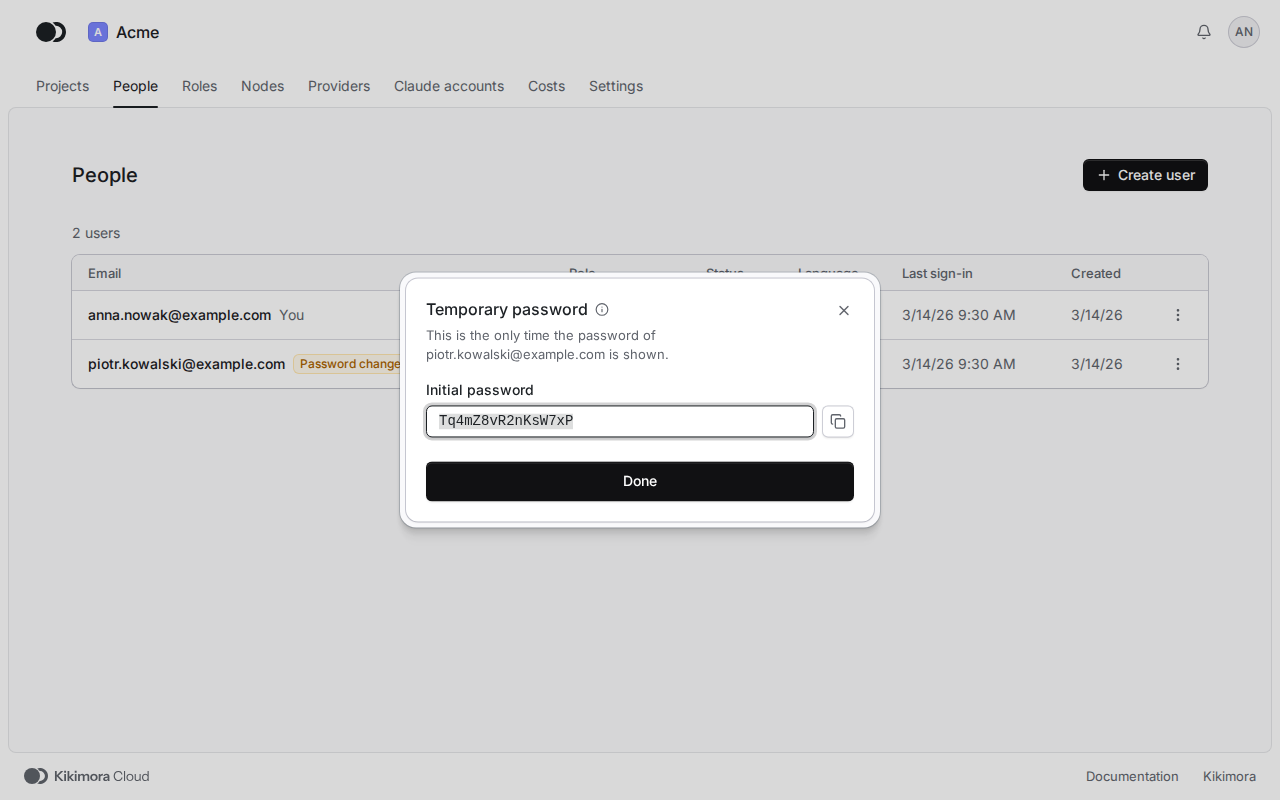
After you create an account or reset a password, the panel shows the temporary password once only. Copy it and pass it on to the person through a secure channel. They must change it at the first sign-in, and a reset signs out all their sessions.
Matches the panel at cloud.kikimora.dev.